Lab 1: Lab Access
This lab is the starting point for your hands-on experience. You will identify your assigned workspace in the shared FortiAIGate instance, sign in, and verify access to the ChatBot used in all the labs.
🎯 Lab Objectives
What you will learn
In this lab, you will:
- Identify your assigned workspace.
- Sign in to FortiAIGate with your lab account.
- Open the Workspace portal of your workspace.
- Open the HR ChatBot application.
🧭 Lab Components
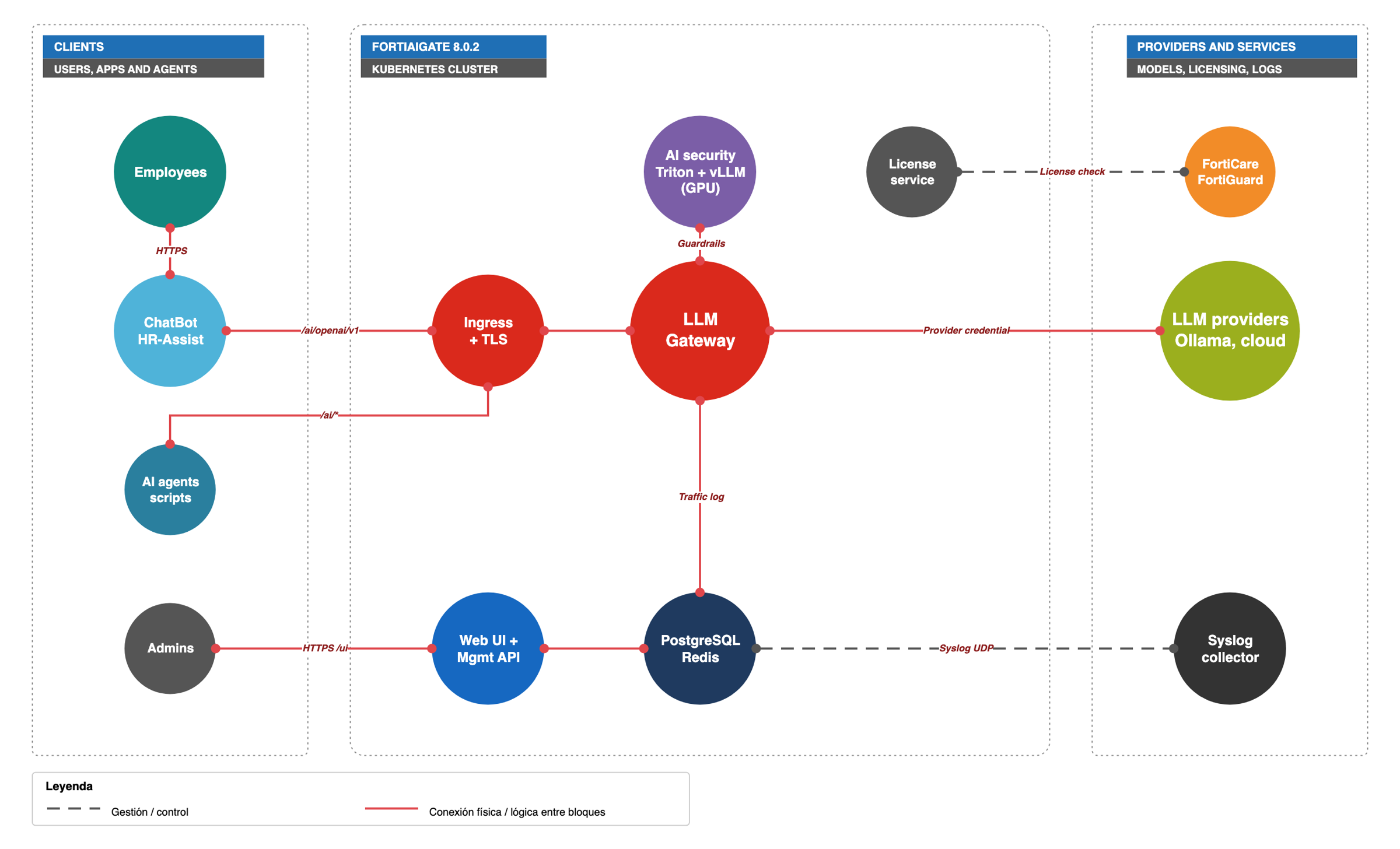
All students share one FortiAIGate 8.0.2 instance. Each student works in their own workspace and uses the same ChatBot and the same private LLM.
| System | Description | Access |
|---|---|---|
| 🛡️ FortiAIGate | AI gateway, web UI and security inspection | HTTPS, your student account |
| 💬 ChatBot | HR Document Assistant web application (Streamlit) | HTTPS /chat |
| 🤖 Ollama | Private LLM (default model llama3.2:3b) |
Only through FortiAIGate |
🔗 Lab Connection
👥 Step 1 – Environment Assignment
Before starting, select your name in the table below.
The access information on all lab pages will automatically update with your assigned workspace.
Important
Make sure your workspace is displayed correctly before you continue.
ws-studentXX🎓 Student name: Unknown Student
👤 Username:
studentN@xpertnola.com — password XpertsLab-2026
- 🛡️ FortiAIGate:
https://Your_FortiAIGate_FQDN - 💬 ChatBot:
https://Your_FortiAIGate_FQDN/chat - 🤖 AI model (Ollama):
llama3.2:3batprovided by your instructor - 🔑 Model name in FortiAIGate:
llama3.2-3b
🚀 Step 2 – Sign In to FortiAIGate
Your instructor already created your account. Sign in with:
- Username:
studentN@xpertnola.com - Password:
XpertsLab-2026
https://Your_FortiAIGate_FQDN/
Certificate warning
The lab uses a self-signed certificate. If your browser shows a warning, continue to the site.
🧭 Step 3 – Open Your Workspace
FortiAIGate 8.0.2 has three portals. Use the portal selector in the upper-left corner to switch between them:
| Portal | What you do there |
|---|---|
| Organization | Instructor only: providers, licenses, workspaces and approvals |
| Workspace | Your lab work: projects, virtual keys, detectors, guardrails, policies, logs |
| Home | Your personal usage and your own user keys |
Select the Workspace portal and your workspace ws-studentXX.
Expected result:
- The Workspace portal of
ws-studentXXis displayed. - You do not see other students' workspaces.
💬 Step 4 – Open the ChatBot
Open the HR ChatBot:
https://Your_FortiAIGate_FQDN/chat
Leave the ChatBot open. You will connect it to FortiAIGate in Lab 3.
🏁 Conclusion
Lab Completed!
You have successfully initialized your environment. By completing this lab, you have:
- Identified your workspace.
- Signed in to FortiAIGate and opened your Workspace portal.
- Opened the HR ChatBot.
You are ready to proceed to the next lab.